The newest versions of Chrome 72+, Firefox 52+, and Opera 59+, do not require an extension for screen sharing. The browser prompts you for access to the screen as it would for access to the camera.
In older versions of Opera and Chrome, to screen-share it is necessary to add an extension to your browser that enables screen-sharing streams for your domain.
Example of screen sharing extension for Chrome: https://chrome.google.com/webstore/detail/screen-sharing/onnpnbcklmahhoajlilopflaandmlooa?hl=en
Note:
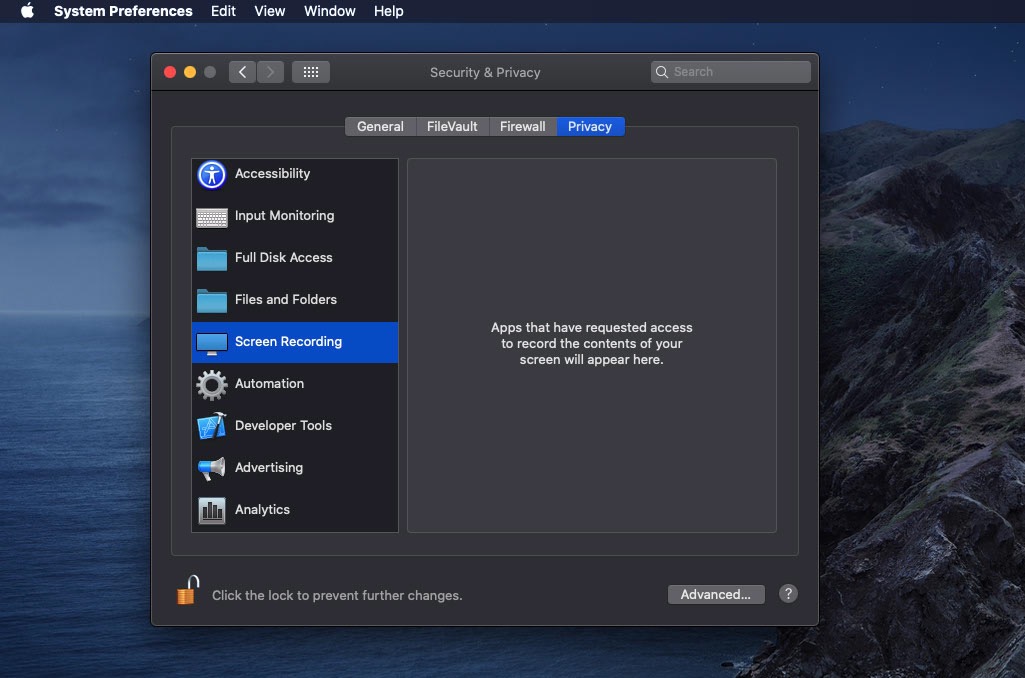
On macOS 10.15+ (Catalina), Apple has introduced system level permissions for accessing screen sharing so you will need to go into the Privacy section of System Preferences, and allow access to the browser that you use with LIM Lessons.
Steps to do this:
System Preferences > Security & Privacy > Privacy > Screen Recording.
Screen-sharing is currently not supported in Safari on iOS, Safari 12 and older on macOS, or non-Chromium versions of Microsoft Edge (versions prior to 79).
Common Problems and Solutions:
Not able to find open window I want to share for Screen Sharing
If you are not able to find all your open applications in the 'Application Window' which allows you which screen to share when screen sharing, it may be due to one of the following reasons:
- The browser window you are using for your LIM Lessons is maximized. When a screen is maximized, only that current screen will be listed as an application window that can be shared (even if your other windows are open).
I can only share my Entire Screen
Depending on the browser you use, you will have different options for sharing your screen. Here are a few of the common ones:
| CHROME |
|
| FIREFOX |
|
| SAFARI (13 or above) |
|
| MICROSOFT EDGE |
|
Screen sharing is blocked
If you are using Safari or Firefox, you may need to check your permissions/settings in your browser to make sure that screen sharing is enabled for LIM Lessons. If you are using a MacOS, you will need to check your settings in your System Preferences.
Comments
0 comments
Please sign in to leave a comment.